
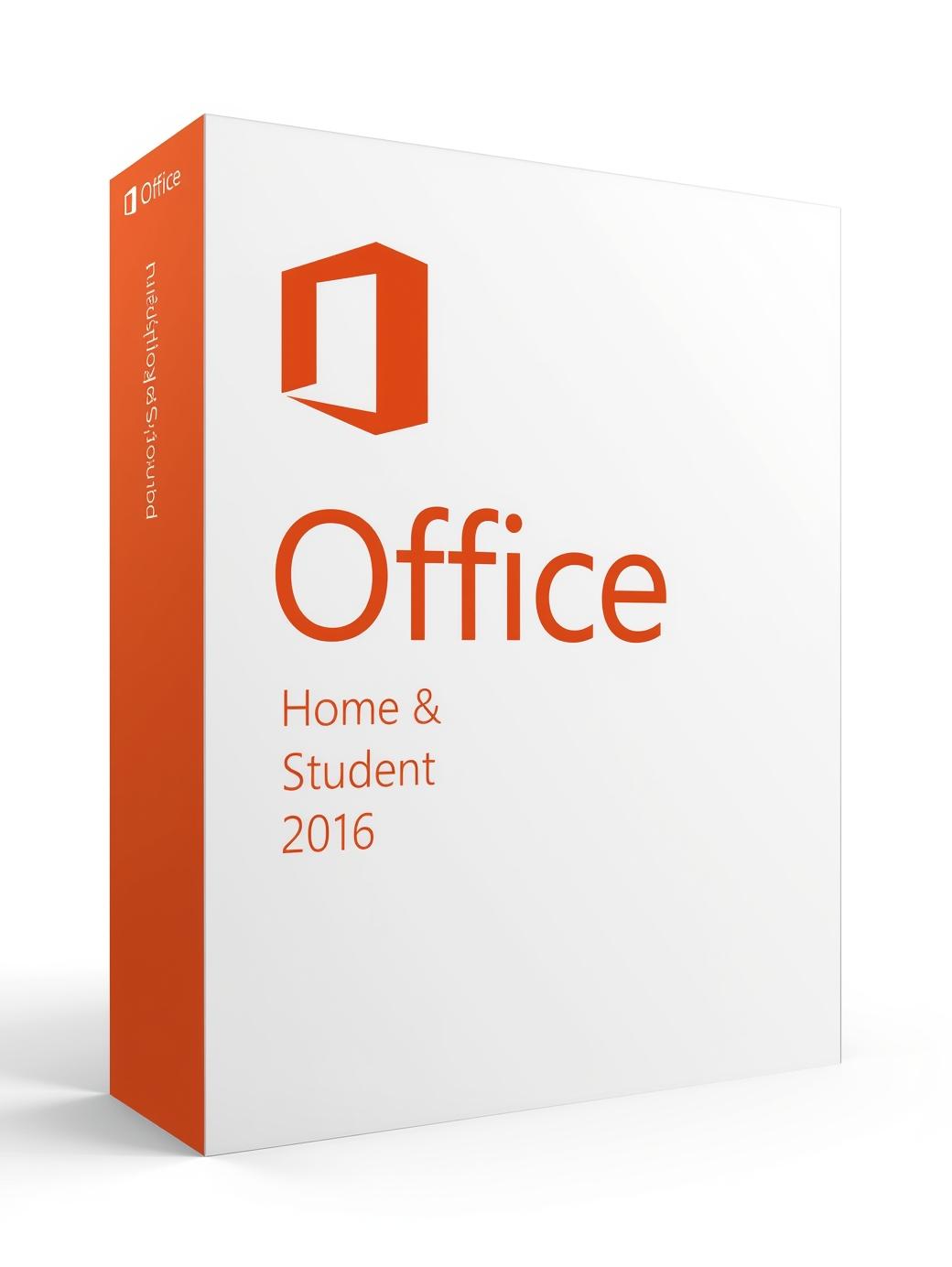
Microsoft Office Home & Student 2016 PC Microsoft Key GLOBAL
$17.65 Free digital delivery via email
In stock
- 30-day guarantee
- Secure Payments
Description
Microsoft Office 2016 requires Windows 7 SP1 to run.
What can you achieve with Microsoft Office 2016 license code and new features?
Access to the most well-liked Microsoft Office tools is the first priority in Microsoft Office Home & Student 2016. They are all compatible with operating systems like Windows 7 or later. You will be able to use the full version with all the available updates. Do not miss your chance to reach a new level of performance. This office suite consists of the following apps:
- Word – a program for writing and editing texts, available formats are, among others, doc or PDF
- Excel – calculation sheets that can be used, for instance, to manage the household budget
- Powerpoint – making presentations using pre-made templates or using your own originality and ingenuity
- OneNote – organize and catalog notebooks, sections, and pages
The main benefit of this bundle is that you don’t need to purchase a physical copy because it is available in virtual form. It is enough if you insert the special code during login into one of the apps. You will get immediate access as a result. You can start utilizing your preferred tools as soon as you install the software and input the code. If examinations at your university are coming up, don’t wait to explore how much you can simplify note-taking or final presentation preparation. However, you receive a complete set of options and resources. A one-time purchase of a package for one device is included with the license.
| Minimal requirements | |
|---|---|
| Windows 7 SP1 | |
| 1 GHz | |
| 2GB RAM | |
| 1280 x 800 screen resolution | |
| 3 GB | |
| Microsoft Account / Internet Access |
Additional information
| Age Rating | 3 |
|---|---|
| Platform | Other |
| Region | GLOBAL |
Activation Guide
Microsoft Office – Activation Guide
Keep in mind: This instruction includes the following sections: Download Software section and 3 different ways to activate it.
Firstly, download or deploy (for LTSC version) your software from the list below:
Secondly, activate it in one of the following ways:
Activation by Phone
Activation by Browser
In app activation
Microsoft software download
You can download the ISO of your Microsoft software 2013 / 2016 / 2019 /2021 from the official links provided below:
Office 2013
Office 2013 Professional Office 2013 Home and Business Office 2013 Home and Student
Office 2016
Office 2016 Professional Office 2016 Professional Plus Office 2016 Home and Business Office 2016 Home and Student
Office 2019
Office 2019 Professional Office 2019 Professional Plus Office 2019 Home and Business Office 2019 Home and Student Office 2019 Home and Business MAC
Office 2021
Microsoft Office 2021 Professional Microsoft Office 2021 Professional Plus Microsoft Office Home & Student 2021
Outlook
Outlook 2016 Outlook 2019 Outlook 2021
Access
Access 2016 Access 2019 Access 2021
Project 2016
Project 2016 Standard Project 2016 Professional
Project 2019
Project 2019 Standard Project 2019 Professional
Project 2021
Project Standard 2021 Project PRO 2021
Visio 2016
Visio 2016 Standard Visio 2016 Professional
Visio 2019
Visio 2019 Standard Visio 2019 Professional
Visio 2021
Visio Standard 2021 Visio PRO 2021
Microsoft Office – Phone activation

- Start Office program to start the activation process

- Select: ‘I want to activate the software by telephone’

- Select your county/region from the dropdown (ie. United States) and call the number provided

- In the phone call, You will be prompted to enter the Installation ID code provided by/in the installation window.

- You will be given/provided sets of numbers. Enter number sets into the text boxes.

- After you have entered the number sets (provided by telephone activation) into the (text) boxes, hit ‘Next’ and then ‘Finish’.

Microsoft Office 2021 – Browser activation
Keep in mind: if this page is visible during your internet activation, click “back” and activate it via phone

- Visit Office Setup Site

- Sign in with your Microsoft Account.

- If you don’t have a Microsoft Account create it following prompts.

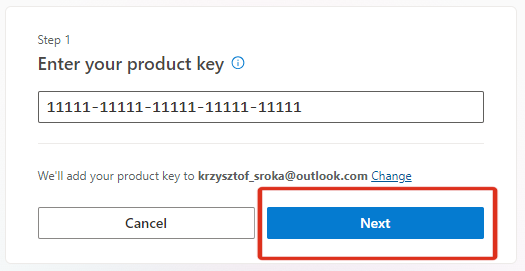
- Enter your bought Microsoft key and finish the redemption process.

- Click ‘Next’ and your software will be assigned to your account
Microsoft Office 2021 – In app activation
- Open an Office app, such as Word or Excel.

- Go to File > Account in the top right corner.
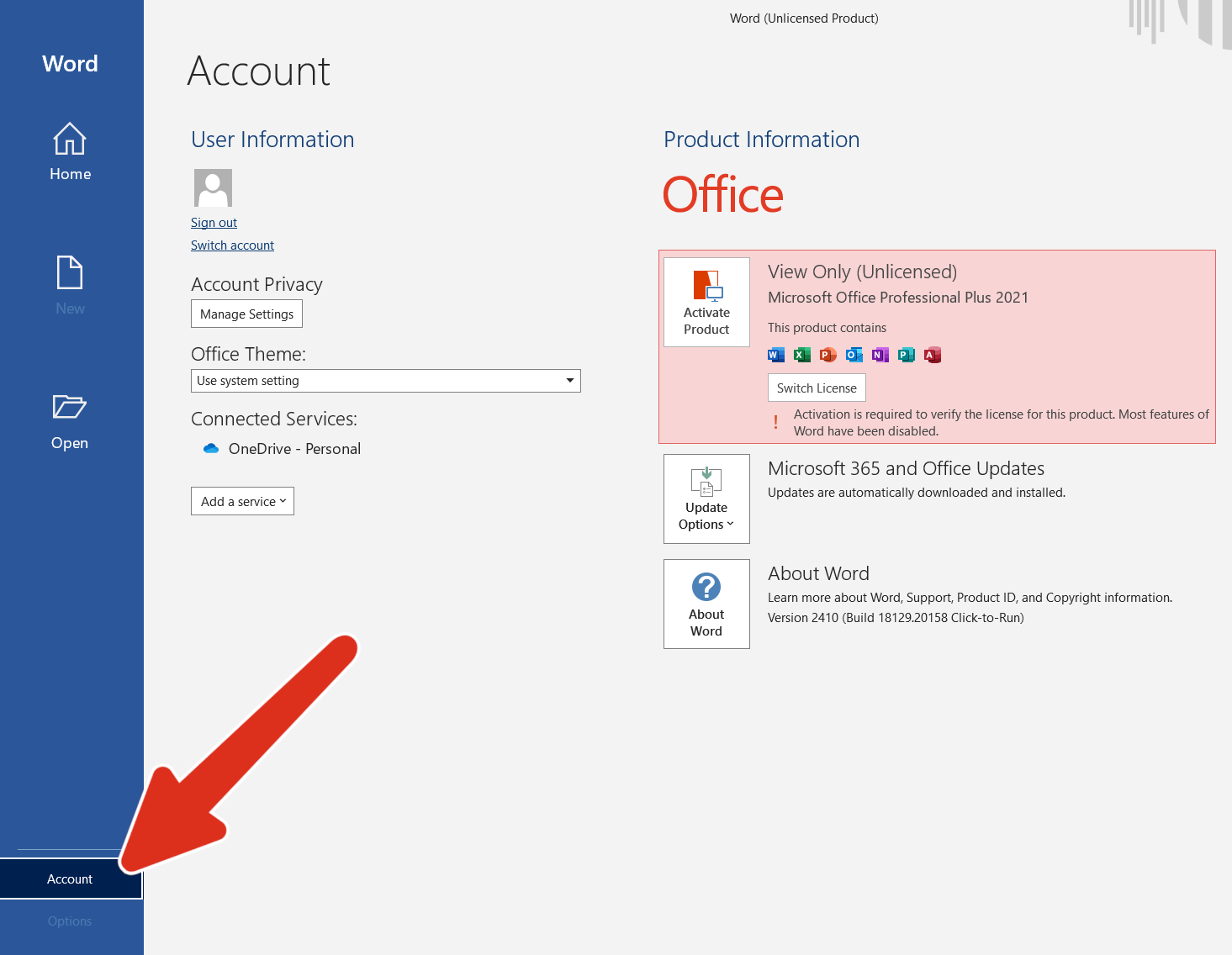
- Under Product Information, go to Activate Product.

- Enter your purchased CD key.

- Click Activate and wait for confirmation.
Keep in mind: If you see a notice that telephone activation is no longer supported for your product, it can still be accomplished visiting Microsoft page:
Choose your country/region and use the following phone numbers to activate your software.
Microsoft Office LTSC Activation:
-
- Download the Office Deployment Tool from the Microsoft Download Center
- Once you have a copy of the ODT, the next step is to create a configuration.xml file. Use the Office Customization Tool (OCT) instead of a text editor to create your configuration.xml file.
- Once you have a copy of the ODT and created your configuration.xml file, you can download the Office LTSC 2024 installation files to your local network. To do this, open an elevated command prompt, navigate to the folder where you saved the ODT and the configuration.xml file, and enter the following command: setup /download configuration.xml
- Install Office LTSC 2024 by using the Office Deployment Tool – open an elevated command prompt, navigate to the folder where you saved the ODT and the configuration.xml file, and enter the following command: setup /configure configuration.xml
Keep in Mind:
- For LTSC versions, customers must deploy it to install.
- It does not link to a Microsoft account.
- It is recommended that customers activate it via telephone (an automated system).
- For this license, the important thing is that there is no redeeming website.
- More info you can find on Microsoft website
Reviews
There are no reviews yet.